Most people think there’s one iPad cutoff for Rapsodo, and there isn’t. It depends on the monitor you own and the app you’re running, and the newest app asks for a lot more than the old ones. Here’s exactly which app you need, what iPadOS it takes, and how to check your iPad before you spend money on a new one.
Which Rapsodo App Does Your iPad Need?
It comes down to which monitor you have. The original Rapsodo Mobile Launch Monitor, also called the MLM or the Rapsodo MLM1, runs on the Rapsodo MLM app. The MLM2PRO has two apps right now: the older Rapsodo MLM2PRO app and the newer Rapsodo Golf app.
Rapsodo Golf is where things are headed. It runs both the MLM2PRO and the newer MLM2XPRO, and it’s the app Rapsodo’s Learning Center points MLM2PRO owners to. The old MLM2PRO app doesn’t work with the MLM2XPRO at all. And if you own an MLM2PRO, you’re not stuck. Rapsodo says it’s still supported, with firmware updates and access to the new mobile and PC apps.
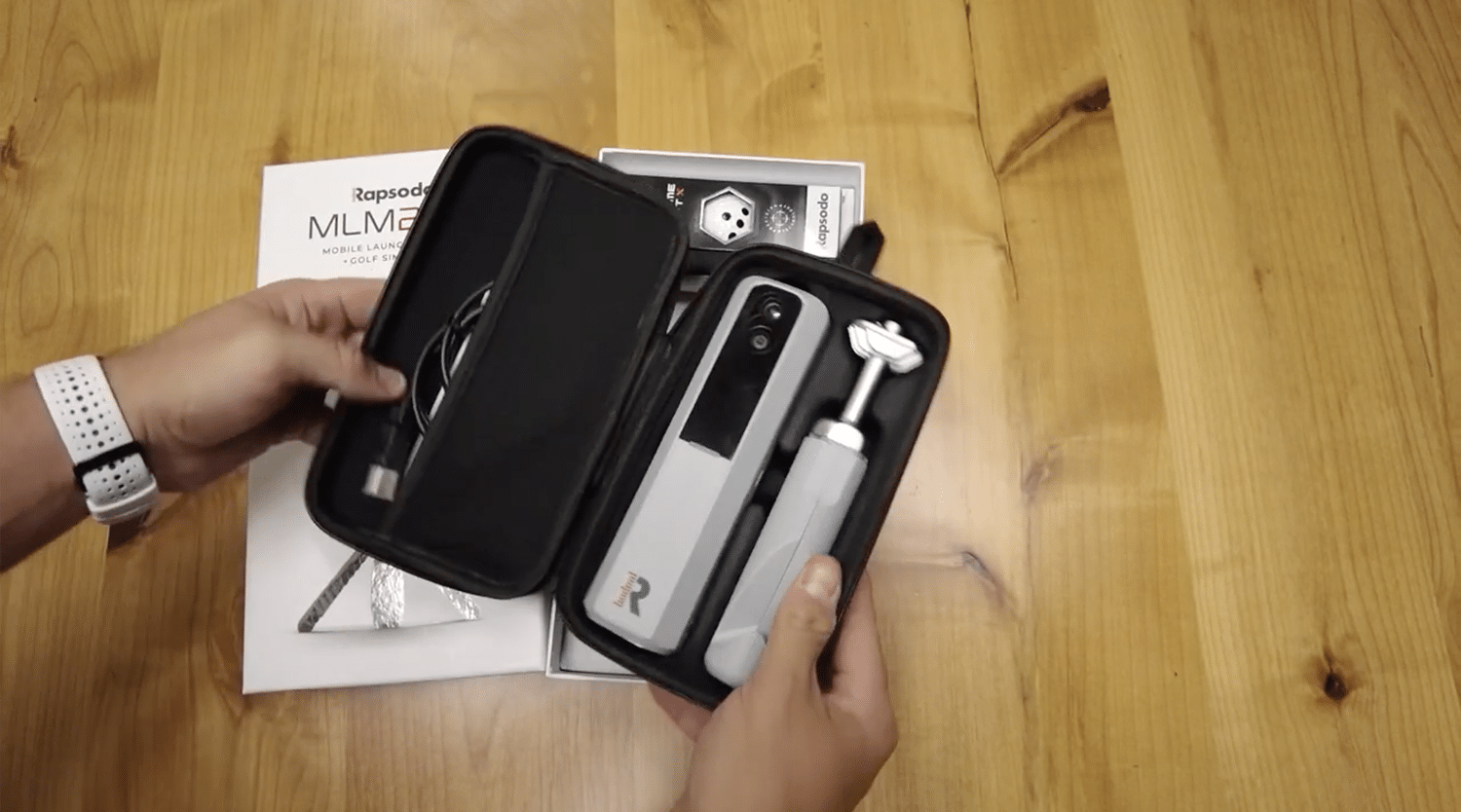
Here’s why the two monitors ask different things of your iPad. The original MLM pairs Doppler radar with your iPhone or iPad camera, so your device is part of the shot tracking. That’s also why it’s iOS only. The MLM2PRO has two cameras built into the monitor, one for slow motion impact and one filming your swing from down the line. So with the MLM2PRO, your iPad’s job is to run the app and show you the numbers.
Now, getting the app on your iPad doesn’t get you everything. On the MLM2PRO, spin and club data need a paid Rapsodo membership. If you’re still deciding on the monitor itself, here’s my full Rapsodo MLM2PRO review.
What iPadOS Version Does Each Rapsodo App Require?
The newer Rapsodo Golf app needs iPadOS 17.6 or later. The original Rapsodo MLM app and the older Rapsodo MLM2PRO app both need iPadOS 15.6 or later.
That 17.6 is the number that catches people. If you’re running your MLM2PRO on the old app, an iPad on 15.6 is fine. Move to Rapsodo Golf and that same iPad has to be on 17.6, or the app won’t install.
You might also see iOS 13 listed for the original MLM on Rapsodo’s site. That’s older guidance. The App Store listing is what decides whether the app actually installs, and right now it says 15.6.
What iPad Do You Need to Run the Rapsodo MLM2PRO?
It depends on which app you run it with. If you’re going with Rapsodo Golf, your iPad has to reach that app’s higher minimum from the section above. The older MLM2PRO app still lists the lower one today, but there’s no promise it stays around. Either way, the app sets the cutoff, not the year your iPad came out.
Rapsodo’s hardware list for the MLM2PRO says a 2017 iPad, 5th generation and up, that supports 1080p. Here’s the catch. Apple’s iPadOS 17 list starts the standard iPad at the 6th generation, so the 5th generation isn’t on it. That iPad can match Rapsodo’s hardware list and still not run the new app.
That same Apple list also takes in some older iPad Pros, like the 10.5-inch model and the 2nd generation 12.9-inch. So an older iPad Pro isn’t automatically out. Just know that being on Apple’s list means the iPad can run iPadOS 17. It doesn’t mean Rapsodo signed off on every one of them, so still check that yours actually updates far enough for the app.
One more thing if you’re building a sim around a TV or projector. When I reviewed the MLM2PRO, I pointed out that you’ll be using your phone or tablet to run everything. And the app can feel a bit clunky on iPads with a locked aspect ratio, especially if you’re trying to perfectly fit it on a TV or projector. So if the big screen is the plan, see how your iPad looks on it before you build the whole setup around that iPad.
Which iPads Support Net Mode on the Original Rapsodo MLM?
For Net Mode on the original MLM, Rapsodo lists the standard iPad 9th generation and up, the iPad Air 3rd generation and up, and the iPad mini 5th generation and up. For the iPad Pro, it’s the 11-inch from the 1st generation and the 12.9-inch from the 2nd generation.
That’s a shorter list than the outdoor one. For hitting outside, Rapsodo lists iPads from 2017 and up that support 1080p. So your iPad can be fine on the range and still not be on the list for hitting into a net in your garage. If Net Mode is the reason you bought the MLM, check this list before anything else.
Both lists sit on top of the Rapsodo MLM app’s iPadOS minimum, too, so an iPad has to clear both. If you want more on what the original unit does well and where it falls short, here’s my Rapsodo MLM review.
How Do You Check Your iPad Before Replacing It?
Go to Settings, then General, then About. That shows you your iPad’s model and the software version it’s running. Then go to Settings, General, Software Update to see if there’s a newer update your iPad can get.
Now match that against two things: the version your app requires, and Rapsodo’s model list for your monitor, plus the Net Mode list if you hit the original MLM into a net. If your iPad clears every one that applies to you, you don’t need a new iPad. Update it and install the app. If it falls short on any of them, that’s when a different iPad makes sense.
If the app installs and the monitor still won’t connect, don’t jump straight to a new iPad. For the MLM2PRO, Rapsodo’s troubleshooting says to turn on both Bluetooth and Wi-Fi.
And don’t let a spec sheet talk you into a bigger iPad. Rapsodo’s compatibility guidance doesn’t list a chip, RAM or storage minimum for these apps. What you do want is some free space, because Rapsodo saves your shots and sessions on the device and uploads them when you’re back online. For room size, screen setup and the rest of the hardware side, my MLM2PRO system requirements guide covers all of it.
Does Your Rapsodo Need Wi-Fi or Cellular Data?
Your MLM2PRO needs Wi-Fi to talk to your iPad, and cellular data doesn’t replace that. Cellular only covers the internet side.
Rapsodo gives you two ways to connect. Local Network puts the monitor and your iPad on the same home Wi-Fi. Direct Connection has your iPad join the monitor’s own Wi-Fi, so you don’t need a home network at all. The first time you activate it, though, you need local Wi-Fi with an internet connection.
After that, Practice, Driving Range and Target Range work without internet. Courses and partner apps are different. In Direct Connection, those need internet, which means cellular data. So if your iPad is Wi-Fi only, plan on the offline modes whenever you’re on Direct Connection. Firmware updates don’t happen in Direct Connection either.
Frequently Asked Questions
What iPad do I need to run Rapsodo MLM2PRO?
An iPad that runs iPadOS 17.6 or later, for the Rapsodo Golf app. Rapsodo’s hardware list starts at the 2017 iPad, 5th generation, but that one isn’t on Apple’s iPadOS 17 list, so start with the 6th generation or newer.
Does the Rapsodo MLM work with Android?
The original Rapsodo MLM doesn’t. It’s iOS only, because it uses your iPhone or iPad camera for shot tracking. The MLM2PRO is different. It works with both iPhone and Android.
Can I use a refurbished iPad with Rapsodo?
Yes, as long as the model and software meet the app you’re using. Refurbished doesn’t change anything. Check the model and the software version the same way you would on any other iPad before you buy it.
Can I use cellular data instead of Wi-Fi with my Rapsodo?
Not for the monitor connection. Your iPad still talks to the MLM2PRO over Wi-Fi. Cellular data handles the internet side, like Courses and partner apps when you’re on Direct Connection.
Will a newer iPad make my Rapsodo more accurate?
Not on its own. On the MLM2PRO, the radar and cameras are in the monitor, and your iPad runs the app. Buy a new iPad when yours can’t run the app you need, not to chase better numbers.
Conclusion
The catch is that these minimums come from the App Store listings, and Rapsodo can raise them with any app update. So check the listing for your app before you buy a tablet, not after.
You can keep your iPad if it updates to the version your app needs, and, if you’re hitting into a net with the original MLM, if it’s on Rapsodo’s Net Mode list. You need a different iPad if yours tops out below that version, or if it’s missing from the Net Mode list and the net in your garage is the whole reason you bought the monitor. Either way, check your iPad in Settings first. It takes a minute, and it might save you a few hundred bucks.

About the author
Paul Liberatore
Paul Liberatore is the founder of Golfers Authority and a former three-year golf gear contributor to Sports Illustrated. He runs the Golfers Authority YouTube channel and the Behind the Golf Brand podcast, and he reviews golf equipment to help golfers make better buying decisions.